Also, once match tickets are distributed through the app, you can add them to your Apple or Google Wallet to use NFC to enter the stadium.


All match tickets are now issued in the Official Aston Villa App only.
Your tickets will be fully secure and in-line with proposed changes introduced by the Premier League.
- You can see your tickets for all upcoming fixtures.
- You can easily manage tickets for you and those in your network.
- Forward and resale functions are available in the app.
To help familiarise yourself with our new in-app tickets and improved functionality, visit our support hub for video guides and tutorials on how to:
Log in to the app (on first download you must log out and then back in for verification purposes)
Where to find your tickets in the app
How to list your ticket for resale
How to forward your ticket

If you previously accessed tickets using the app or your Apple or Google wallet, your phone can support in-app tickets. Your phone does not have to compatible with NFC technology, you can use the in-app barcodes if it doesn't have NFC.
For iOS (Apple) devices: you will require a device running iOS 16 or above. The app may work on 15 and 14, but we cannot guarantee it's stability.
All supporters will need to access their match tickets in the app this season, therefore if your device does not support the latest version, you will need to replace your device to be able to attend games at Villa Park going forward. For iOS (Apple) devices, you will require a device running iOS 16 or above and for Android (Google) devices it will need to run at Android 14 or above.
We regularly review and revise which Operating Systems our app supports so that we offer a stable and secure experience for fans. As with all other apps, this can mean dropping support for older OS versions, which means new app updates are then no longer available. This usually happens around the release of Apple and Google OS updates in the latter half of the year.
Please log in to the official Aston Villa app with the same log in details you use to access the ticketing website. This is the same as your Essential Membership (previously called 'Digital Account').
Make sure to check you do not already have an existing Essential Membership (previously called 'Digital Account') by attempting to reset your password. If your account already exists, you will receive a reset password instruction email. This can be done here.
Alternatively, please create an Essential Membership. Please make sure you use the same details you use to access tickets from the ticketing website. This will automatically link your Essential Membership to your ticket history.
To reset your password, click here.
1. Tap on the profile button (top-right on the screen).
2. Tap "Logout" at the bottom of the list.
3. Select "Yes" to log out of the app.

Tap on the "Tickets" button in the app (4th icon on the lower navigation ribbon).
Please ensure you are logged into the correct account and are on the latest app version. To check this, please go to the App Store (Apple) or Play Store (Google)on your device and ensure you have no updates available.
Please contact the Ticketing Team who will be able to assist.
If you lose your phone or get a new phone then you'll be able to access your tickets through the app on your new device once you've signed in.
If you have already added your ticket to your wallet and want to use NFC to enter the stadium then please get in touch with the Ticketing Team who will be able to distribute a new NFC ticket for your account.
"Ticket Verfication Screen"
Please open a web browser, go to tickets.avfc.co.uk and log in. You will be presented with a “complete your registration page”. Please fill in the missing details and return to the app and try again.
“Oops something went wrong” message
To fix this error, please log out of the app, and then force close the app. Re-open the app and log back in using your credentials. Navigate back to "Tickets". The error should now be gone.
To make it easier for you to manage your tickets throughout the season, you will have a separate ticket for each fixture.
This means, if you choose to forward or resell your ticket, it will be removed from your upcoming fixture list.
To ensure all your tickets will be available without internet connection, please click on every individual match. When your ticket has stored to your phone, you will see an icon confirming that your tickets are now downloaded to your app.
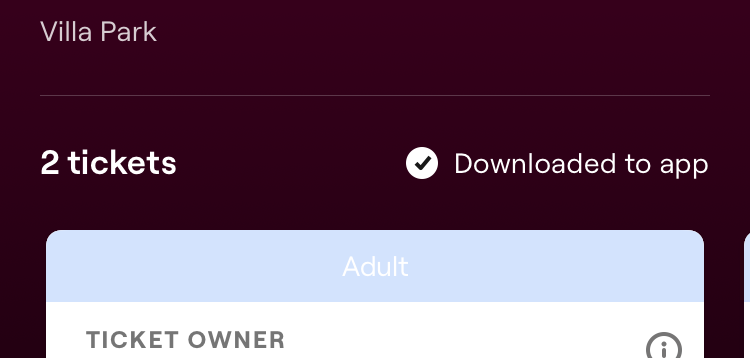
We recommend accessing your ticket in the app before arriving at the stadium.
If your ticket has not appeared in the app, please ensure you are logged in on the correct account and that you have a ticket purchased for the game. If you still do not see your ticket, please contact the Ticketing Team.
Yes, all home ticket purchases will appear in the app.
Currently, the app is only set up to support home tickets.
Screenshots are not valid tickets and will not work at the turnstile.
Yes, if you cannot attend a game, please forward, or list your ticket for resale via the app. Go to "Tickets", tap on the game you cant attend and then select either "Forward" or "Resell."
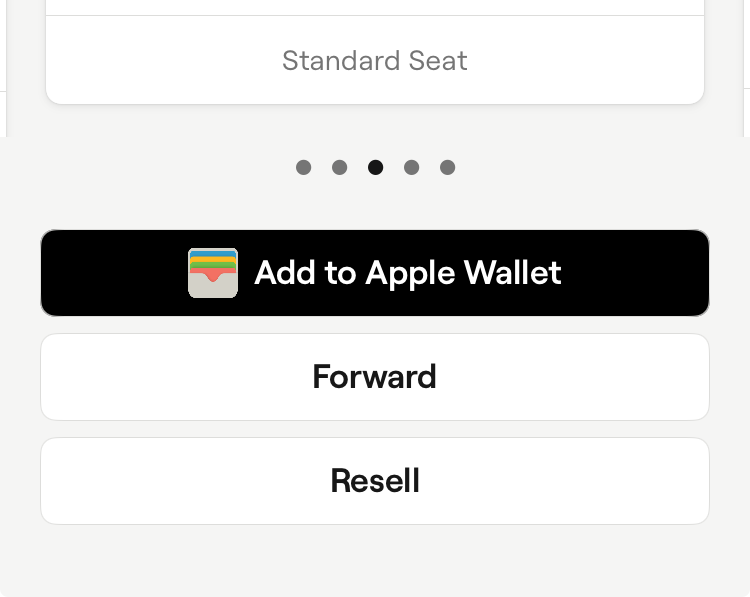
In order to resell your ticket, you need to have a bank account linked to your ticketing account. Go to tickets.avfc.co.uk to update your payment details. Once updated, your details will automatically sync to the app.
To keep tickets secure, by default, you will only be able to see your own ticket on your device.
No action is needed if you have a strong relationship in place with your child. Your child's tickets will automatically appear on your device too.
Please note, a child is recognised as someone aged under 16.
If you need to set up a strong relationship, you can do so via the ticketing website.
You will need to set up a new App Sharing relationship in friends and family. Your child/dependant’s tickets will then automatically appear on your device too.
To set up this relationship, login to the ticketing website and hover over your initial in the top right corner. From here, you will need to select Friends & Family from the menu that appears.
If you are editing an existing relationship, click on the 3 dots next to your child/dependent and select Edit Relationship. From here, the relationship type should then be changed to App Sharing.
For security reasons, by default, you will only be able to see your own ticket unless you have an App Sharing relationship with someone.
It is possible to create a new App Sharing relationship type to see someone else’s ticket, regardless of their age.
Please note, you can only have up to a maximum of 8 supporters linked to your profile with an App Sharing relationship type.
This new relationship type should only be used with trusted people, those whom you set up the relationship with have full control of your ticket. They can forward or resell your ticket.
You can create an App Sharing relationship in the same way you set up a linked account.
We’ve introduced an additional security step when adding supporters to your Friends & Family network.
When someone wants to add you to their Friends & Family, they will now need your unique three-word Approval Code. This helps us make sure that you have approved the request before the relationship is created.
You should only share your Approval Code with someone you know and are happy to be linked with.
Approval Codes provide an additional layer of security when creating Friends & Family relationships.
Requiring your Approval Code helps ensure that you have given permission for another supporter to add you to their Friends & Family network.
To find your Approval Code:
Sign in to the ticketing site.
Go to Friends & Family – access by clicking your initials in the top right corner and then Friends & Family.
Select Reveal approval code.
Your three-word Approval Code will be displayed.
You can then share this code with the person who wants to add you to their Friends & Family.
From the Friends & Family page, select Reveal approval code to display your three-word code.
You can either tell the code to the person directly or use the Share option to copy the code so you can send it to them.
For your security, only share your Approval Code with someone you know and trust.
Before starting, ask the supporter you want to add for their three-word Approval Code.
Then:
Sign in to the ticketing site.
Go to Friends & Family.
Select the option to Add User.
Follow the instructions to find the supporter you want to add.
When prompted, enter the Approval Code they have provided.
Select Confirm.
If the Approval Code is successfully verified, the Friends & Family relationship will be created.
You'll need the other supporter's Approval Code before the relationship can be approved.
When prompted for the Approval Code, you'll also have the option to send an email to the supporter asking them to provide it.
They can then sign in to their ticketing account, visit Friends & Family and reveal their Approval Code.
This means another supporter is attempting to add you to their Friends & Family network.
If you recognise the request and are happy to be linked with them, sign in to the ticketing site, visit Friends & Family and select Reveal approval code.
You can then provide your three-word Approval Code to the person making the request.
If you don't recognise the request, do not share your Approval Code.
If you're trying to add another supporter and don't have their Approval Code, you'll be given the option to send them an email.
For security and to prevent misuse, these emails can only be sent once every 30 seconds.
There is a 30-second limit between email requests. This is in place to prevent the email functionality from being misused.
Wait at least 30 seconds before trying again.
Yes. You can generate a new Approval Code at any time.
Go to your Friends & Family page, reveal your Approval Code and select the refresh icon.
You can then share your new three-word Approval Code with the person you want to approve.
Refreshing your Approval Code generates a new code for you to share.
If you have previously given someone an Approval Code and then refresh it before they complete the linking process, provide them with your new code.
Once a Friends & Family relationship has been successfully created, an email notification will be sent to confirm the new relationship.
This provides an additional security check and makes you aware when your account has been linked with another supporter.
If you receive a notification about a Friends & Family relationship that you weren't expecting or don't recognise, check your Friends & Family network on the ticketing site.
Do not share your Approval Code with anyone you don't know or trust.
If you believe a relationship has been created without your permission, please contact the Club for assistance.
No. You should only share your Approval Code with someone you know and are happy to have in your Friends & Family network.
Your Approval Code is used to confirm that you approve the relationship, so don't post it publicly or share it with people you don't recognise.
No. You should never share your account password with another supporter.
They only need the information required during the Friends & Family linking process and your three-word Approval Code.
Your Approval Code is separate from your account password.
Yes. Once a new Friends & Family relationship has been successfully created, an email notification will be sent confirming the relationship.
The new Approval Code process applies when creating a new Friends & Family relationship. Existing relationships do not need to be recreated as part of the new authentication process.
Once you have purchased a ticket, the match will appear in the "Tickets" section of the app. For security reasons, we will not distribute QR codes within the app until the day before the game.
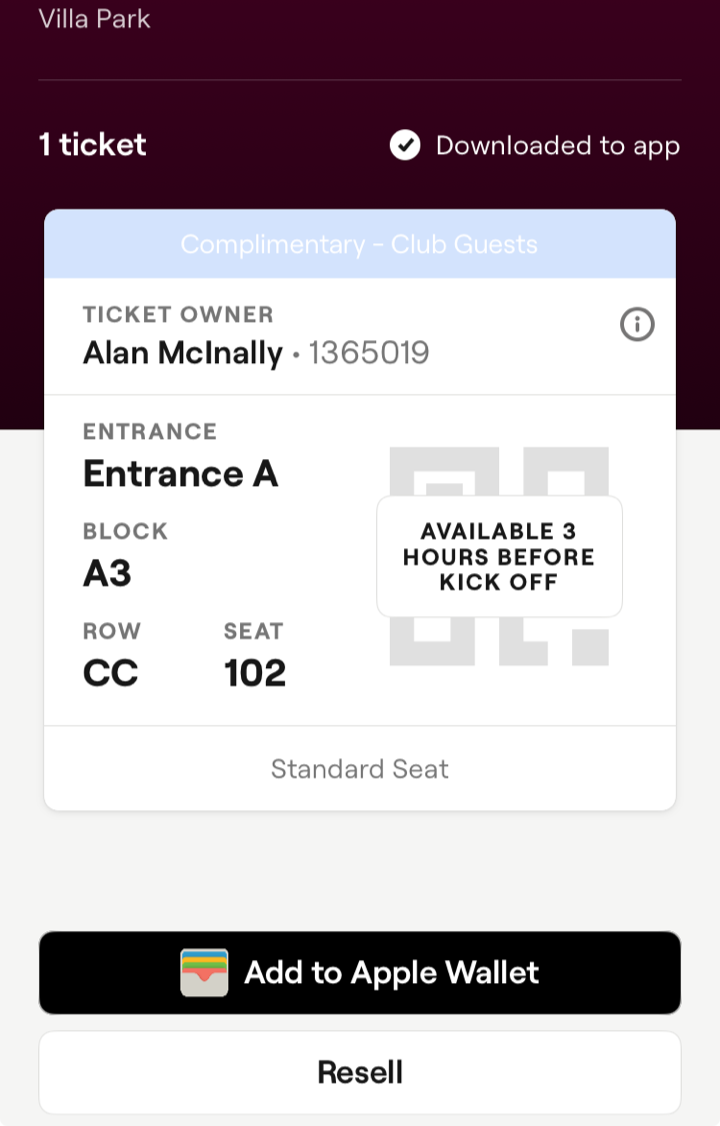
If your ticket doesn’t just appear, simply close and reopen the app.
App ticket
When you arrive at the stadium, access your ticket via the official Aston Villa app and hold your phone, screen facing towards the reader, against the barcode scanner at the bottom of the turnstile reader. Please note, each ticket is single-use and cannot be transferred after entering the stadium.
NFC ticket
When you arrive at the stadium, access your ticket via Apple Wallet or Google Wallet, and hold your phone, screen facing towards you, against the contactless reader at the top of the turnstile reader. Please make sure your phone isn't locked when you hold it against the reader, if you have any problems, you may just need unlock your phone and try again. Please note, each ticket is single-use and cannot be transferred after entering the stadium.
If you have added your ticket to your wallet to use a NFC as a way of entry, then no internet connection will be required.
If you have saved your ticket to your app by clicking on it before the game, then you will be able to open the app with no internet connection. If there is limited connectivity, then the app will try to open for 10 seconds before defaulting to offline mode - in this mode you will still be able to access your ticket as long as you've previously saved it to your app.
One the day of the game, either tap your phone on the top of the reader to enter via NFC, or scan the barcode within the app at the bottom of the reader on the turnstile.
If you have saved your ticket to your app by clicking on it before the game, then you will be able to open the app with no internet connection. If there is limited connectivity, then the app will try to open for 10 seconds before defaulting to offline mode - in this mode you will still be able to access your ticket as long as you've previously saved it to your app.
If you face issues with the app or your ticket not opening fully at the turnstile, connect to the free stadium Wi-Fi and you will be able to access your ticket.
If you have previously accessed your ticket in the app, your ticket will remain stored on your device even when you are offline.
If you haven't previously accessed your ticket and don't have signal, you'll need to move to an area with better reception to download it. We strongly recommend downloading your ticket in adcvance.
Phone battery or charge is the responsibility of the device owner.
Supporters can bring small phone chargers into the stadium (they must be able to fit into your pocket).